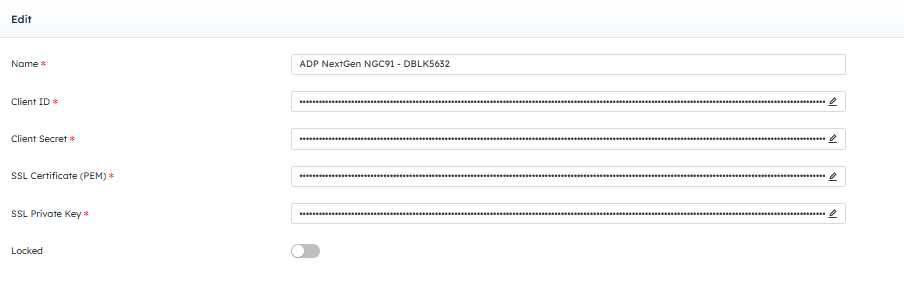
DataBlend has separate Connectors for ADP WFN Classic and NextGen, this page is to instruct you on how to setup credentials for ADP WFN NextGen
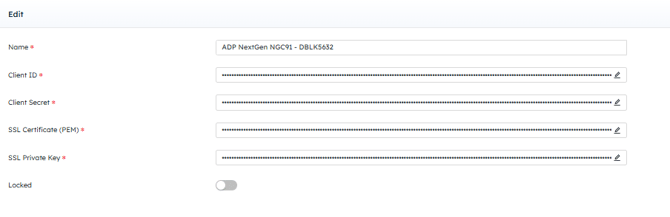
|
Field Name |
Required/ Optional |
Description |
|---|---|---|
|
Name |
Required |
Provide a unique name for this credential |
|
Client ID |
Required |
This is located in the Project of API Central |
|
Client Secret |
Required |
This is located in the Project of API Central |
|
SSL Certificate (PEM) |
Required |
This is our API Central Certificate, only Datablend internal has access unless you already own API Central |
|
SSL Private Key |
Required |
This is our API Central Certificate, only Datablend internal has access unless you already own API Central |
|
Locked |
Optional |
Enable or disable the toggle to lock the credential. This will not allow another user to edit the credential |
ADP WFN NextGen API Central DataBlend Connection
Partner Self Service Connection
If purchasing API Central for the first time through the Marketplace, DataBlend will setup the Credential for you.
If you already have API Central and just purchasing data flows please complete the following steps.
- Client needs to create a user for DataBlend Services Team within API central
- Create project from within self service portal
- Get Certificate, client id/secret will be in the project (this is what DataBlend will need)
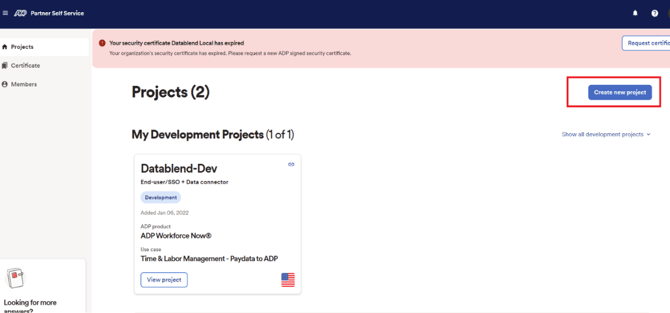
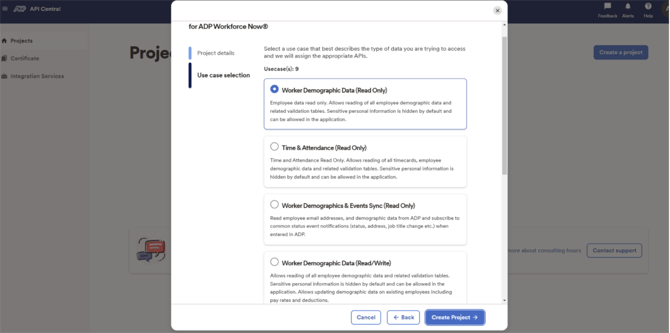
Create New Project
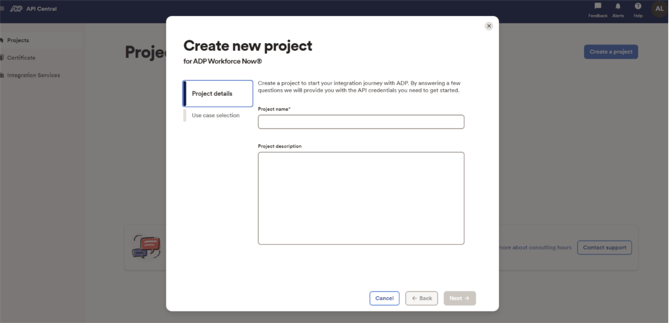
Give Project a Name and description (optional)
Click View project 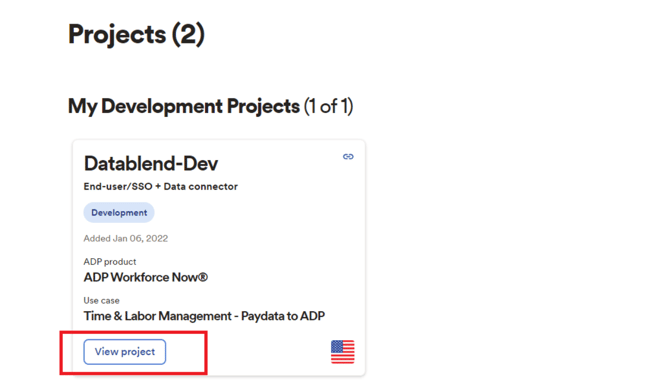
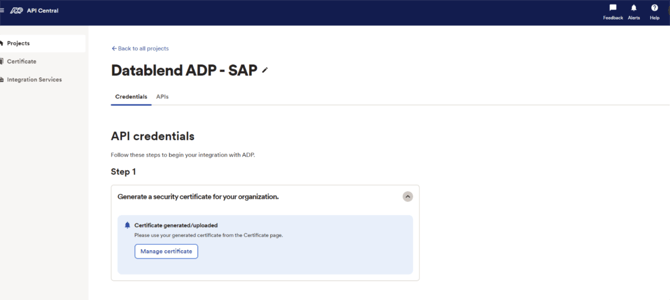
Step One: Generate Certificate and Certificate Key
At the time of certificate generation the key will also be generate. Users must copy this into a doc/notepad before clicking away. This is the only time a user will be able to access this key.
Step 2: Get Client ID and Client Secret
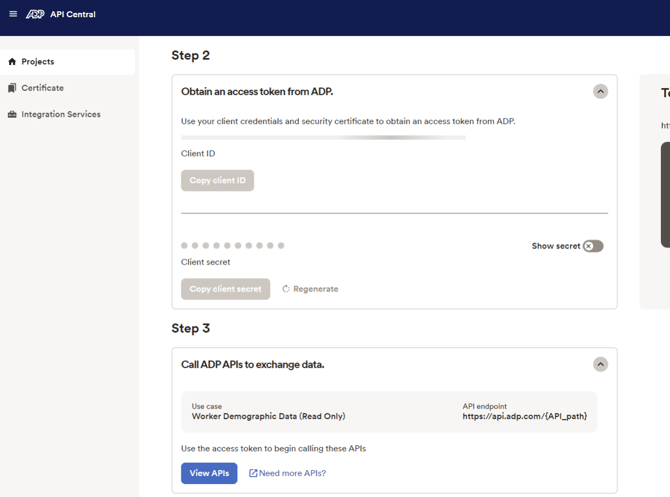
Step 3: View APIs
This list of APIs are chosen at the time of project creation. If additional APIs are needed, only ADP can add this. Click on "Need more APIs" to be directed to the ADP support form.
Add the Credential in DataBlend