
Overview
DataBlend currently collects the following Box data type:
Configuration
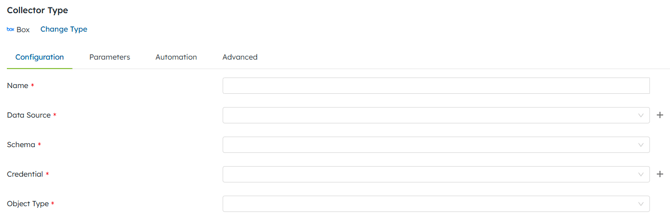
|
Field |
Required/ Optional |
Comments |
|---|---|---|
|
Name |
Required |
Descriptive free-text name for the collector. |
|
Data Source |
Required |
Choose a pre-configured data source from the drop down or click Create New to create a new data source. |
|
Schema Name |
Required |
Enter a name for the schema where the collected data will be stored. This can be a pre-configured schema or a new schema which will be created the first time the collector is run. |
|
Credential |
Required |
Choose a pre-configured Box credential from the drop-down. |
|
Box Collector Type |
Required |
Utilize the pre-populated Collector Type drop-down menu. |
| Setting | Description |
| Collaboration IDs | (Optional) Specific collaboration IDs to collect. |
| Fields | (Optional) Comma-separated list of Box API fields to include. |
| All Files | If enabled, discovers all files in your Box account and collects their collaborations. |
| All Folders | If enabled, discovers all folders in your Box account and collects their collaborations. |
| All Groups | If enabled, collects collaborations for all groups in your enterprise. |
| All Pending | If enabled, collects all pending (not yet accepted) collaborations. |
Example output columns: id, role, status, accessible_by.id, accessible_by.name, accessible_by.login, item.id, item.type, created_at, expires_at`, can_view_path
How it works:
- If you provide specific Collaboration IDs, only those collaborations are returned.
- If no IDs are provided, use one or more of the All toggles to discover collaborations automatically.
- Multiple toggles can be combined (e.g., enable both All Files and All Folders).
- If no IDs are provided and no toggles are enabled, no data is returned.
Warning: Enabling All Files or All Folders on large Box accounts can be slow, as it must traverse your entire file tree.
| Setting | Description |
| File IDs | The Box file IDs to download. |
| Save As Schema | If enabled, treats the first file as a CSV and uses its column headers as the data schema. Each CSV row becomes a data record. |
| As Zip | If enabled, packages all selected files into a single zip archive. |
| Zip Name | The name for the zip archive (only used when As Zip is enabled). |
| Column | Description |
| FileName | Name of the file in Box |
| Id | Box file ID |
| VersionNumber | File version number |
| Content | File content, Base64-encoded |
Output columns (zip mode):
| Column | Description |
| FileName | The zip archive name |
| Content | Zip file content, Base64-encoded |
Columns are dynamically created from the CSV headers in the first file. Each row in the CSV becomes a data record.
| Setting | Description |
| File Request IDs | Comma-separated list of file request IDs to collect. |
Example output columns: id, title, description, status, older.id, folder.name, created_at, updated_at, expires_at, is_email_required, is_description_required
| Setting | Description |
| File IDs | The Box file IDs to retrieve metadata for. |
| Fields | (Optional) Comma-separated list of Box API fields to include. If omitted, Box returns its default set of fields. |
Example output columns: id, name, size, modified_at, created_at, owned_by.name, owned_by.login, shared_link.url, extension, description