
Prerequisites
-
Create a group for the client.
-
Create a Local SFTP Credential for the group and provide the username and password to the client.
-
Create a Data Source for the collection, if one does not already exist.
Configuration
| Field | Required / Optional | Notes |
| GENERAL | ||
| Name | Required | Free text descriptive name for the collector. |
| Data Source | Required | Add new or select from drop-down. |
| File Collector Type | Required | Local SFTP |
| Credential | Required | Select a Local SFTP credential from the drop-down. |
| Decrypt Files | Optional | Toggle on if the file on the SFTP is PGP-encrypted. DataBlend will decrypt the file before processing. The PGP private key must be configured on the associated credential. |
| FILE SELECTION | ||
| Path | Required | Enter an exact filename or a subdirectory and filename. |
| Use Regular Expression | Optional | If disabled, the directory and filename in Path are used exactly as entered. If enabled, the value of Path is treated as a regular expression. |
| Is Zip File | Optional | Toggle on when collecting a file from inside a Zip folder. Set the Path to the Zip folder and enter the target filename (including extension) in the Zip File Name field. Create a separate collector for each file to collect from the Zip folder. |
| Use Bookmark | Optional | When enabled, only files uploaded after the bookmark timestamp are processed. The bookmark is updated automatically each time the collector runs, preventing files from being processed more than once without deleting them. To reprocess files, clear the bookmark. |
| AFTER COLLECTION | ||
| After Collcetion | Required | Determines what happens to the file after it has been processed. Select one of the following: Keep file in original location — the file remains on the SFTP unchanged. Use with Use Bookmark to prevent reprocessing. Copy file to archive folder — the file is copied to the Archive Folder path. The original file remains in its current location. Move file to archive folder — the file is moved to the Archive Folder path and removed from its original location. Recommended when files should not be reprocessed and you want to retain them for reference. Delete file — the file is permanently deleted from the SFTP after processing. Files processed by previous collection runs will not be deleted retroactively. |
| Archive Folder | Required when After Collection is Copy or Move | The destination path on the SFTP where processed files will be copied or moved. |
| Archive File Name | Optional | The filename to use when copying or moving the file to the archive folder. Leave blank to retain the same filename as the collected file. |
| FILE DEFINITION | ||
| File Definition | Required | Select the format of the file being collected. Options: Delimited — files where values are separated by a character (comma, pipe, tab, semicolon, etc.). Most common for .csv and .txt exports. Specify the delimiter in the Delimiter field.Excel — .xlsx or .xls spreadsheet files. See Collecting Excel Files below for tab-specific configuration.Flat — fixed-width files where each field occupies a set number of characters with no delimiter. Common in legacy ERP, payroll, and mainframe exports. IIF — Intuit Interchange Format files ( .iif), used by QuickBooks for importing and exporting lists and transactions.JSON — standard JSON files. Use the Is Array field if the file contains a JSON array at the root level. JSONPath — JSON files with nested arrays. Use when the data you need is inside a nested structure and a JSONPath expression is required to target it. Raw — collects the file contents as a single unstructured text value without parsing. Use when the file format does not fit another definition, or when passing raw content to a query for custom processing. XML Path — XML files. Use when data is structured in XML format and an XPath expression is needed to target specific elements. |
|
Delimiter Delimited only |
Optional | The character used to separate fields. If left blank, comma-delimited is assumed. Common values: Tab: enter \t or TABPipe: |Semicolon: ;Tilde: ~ |
| Allow UTF-8 Column Names | Optional | Toggle on to allow column names that contain UTF-8 characters. Use when the source file headers contain accented characters, symbols, or non-Latin characters. |
| Is Header Row Present | Optional | Toggle on if the first row of the file contains column headers. Enabled by default. Disable if the file contains data in the first row with no headers. |
| Skip Rows | Optional | The number of rows at the top of the file to skip before DataBlend begins reading data. Use when the file contains metadata, titles, or blank rows above the header or data. |
|
Merge Sheets Excel only |
Optional | Toggle on to combine data from multiple sheets into a single schema during collection. |
| Header Date Format | Optional | Specify the date format used in the file header row if dates appear as column headers (e.g. pivot-style files). Uses standard date format tokens such as MM/dd/yyyy or yyyy-MM-dd. |
|
Is Array JSON only |
Optional | Enter the array path if the file definition is JSON and the data is contained within a nested array. |
| SCHEMAS | ||
| Schemas | Optional | Define the schema name(s) within the Data Source where collected data will be stored. If the schema already exists it will be updated; if it does not exist it will be created. See Collecting Excel Files below for tab-specific schema configuration. Note: If the schema name is changed, queries using the old schema name may no longer work. |
| Add File Name To Schema | Optional | Toggle on to include the source filename as a column in the collected schema. Useful when collecting multiple files into the same schema for traceability. |
| Add Row Number To Schema | Optional | Toggle on to include the source row number as a column in the collected schema. |
| Add Sheet Name To Schema | Optional | Toggle on to include the sheet name as a column in the collected schema. Applies to Excel files with multiple sheets. |
Collecting Excel files
- Collecting data from all tabs into separate schemas. Do not click Add Schema when setting up the collector. Schemas will be named after the tab names automatically. If a schema is added and then deleted, the collection will error. Troubleshooting: Switch to another File Definition → Save → Switch back to Excel.
- Collecting data from one specific tab.
a) For.xlsxfiles, the Schema Name should match the name of the tab in the Excel file you are collecting from.
.png?width=670&height=209&name=image-20231004-123259%20(1).png)
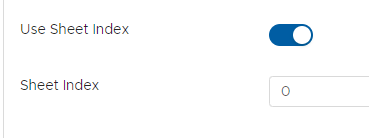
.xls files, either use the same approach as above, or leave the schema blank and it will be added automatically.c) To use a custom schema name that differs from the tab name, toggle on Use Sheet Index and set it to
0 to collect from the first tab, 1 from the second, and so on.
Collecting files from Zip folders
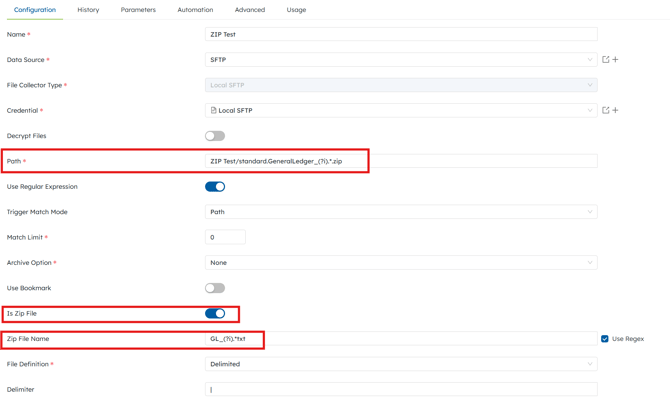
When collecting files from Zip folders, configure the collector as follows:
- Set the Path to the Zip folder on the SFTP. Use Regular Expression if the folder name will change.
- Toggle Is Zip File on.
- In Zip File Name, enter the name of the file to collect from within the Zip folder, including the file extension (e.g.
report.csv). - Create a separate collector for each file you need to collect from the Zip folder.
How to Use Match Limit for Collecting a Specific number of Files
Use the Match Limit setting when you need to collect a specific number of files during a collector run.
- If Match Limit is set to
0, the collector will collect all files that match the Path field. - If Match Limit is set to a value greater than
0, the collector will collect up to that number of matching files.
For example, if a Workflow is triggered by files being dropped to an SFTP location and multiple files arrive at the same time, but you only want to collect one file per run, set Match Limit to 1. To ensure additional files dropped at the same time are not skipped, configure the Workflow to Run in Sequence under the Advanced tab.
Trigger Match Mode
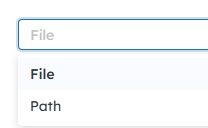
Defaults to Path and is not required. This allows backwards compatibility with existing collectors.
- Path (default) — evaluates the full path specified in the collector as a regular expression, e.g.
^path/to/.*\.ext$. - File — requires the full directory to match and treats the file part as a regular expression. For example, using
path/to/^.*\.ext$, the trigger will not execute unless the path of the file added also begins withpath/to/and the filename matches the regular expression.path/to/file.extwill match;archive/path/to/file.extwill not.
How to Send Files to DataBlend SFTP
SFTP Host
|
Host |
Port |
IP Address |
|---|---|---|
|
sftp.ml.datablend.com |
22 |
3.18.206.127 |
-
Create a Local SFTP Credential
You cannot set the username assigned to this credential, but you can set the password.
Once the password is set, it can be changed, but it CANNOT be viewed. Be sure to add it to a password manager if you think you won’t remember it.
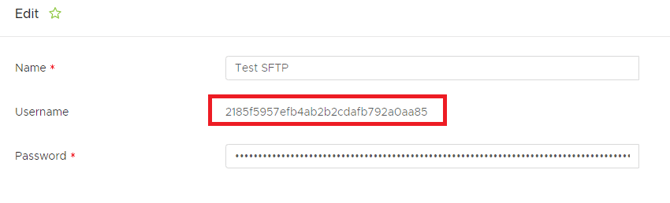
2. Once the Credential has been saved, the username is displayed.
FTP Client
Any FTP Client which supports SFTP can be used to send files to the DataBlend FTP server. If you do not currently have an SFTP Client, DataBlend suggests one of the following:
These clients offer a balance of ease of use, long track record, and are frequently updated for security and bug fixes. DataBlend has historically used BitVise.
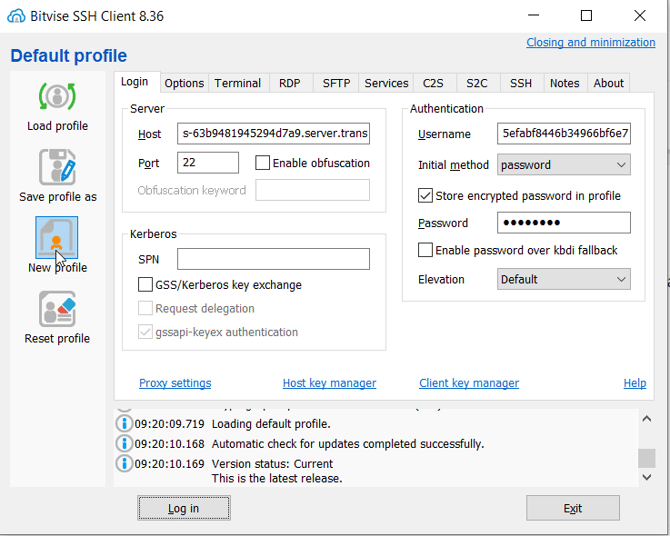
You will not be able to open an SSH terminal. You can change the BitVise options to only open the SFTP client.
.png?width=597&height=364&name=image-20191113-142430%20(1).png)
Local SFTP Security
DataBlend Local SFTP utilizes AWS Transfer, a managed and secure SFTP service provided by Amazon. What is AWS Transfer Family? - AWS Transfer Family.
-
Protection in Transit - The connection from client to the Transfer server is encrypted with TSL 1.2
-
Protection at Rest - Because Transfer leverages S3 storage, the storage buckets where the files are stored before being processed by DataBlend are also encrypted at rest utilizing customer group specific KMS encryption keys.
Questions on how to connect to a local sftp? Questions on security best practices? Please visit our Local SFTP Credentials article.