Overview
NetSuite Saved Search collector is based on Saved Search that is a powerful tool within NetSuite. A key advantage of NetSuite’s Saved Searches is that anyone can use them. NetSuite displays fields and join fields which allow to pull almost every piece of data from associated records by a Saved Search.
DataBlend uses NetSuite RESTlet functionality to run a saved search and collect the results. For this to work, a NetSuite administrator must create the saved search and RESTlet, and then a DataBlend user can configure the collector.
Contents
Create Saved Search RESTlet Script Record in NetSuite
Create and Find Saved Search in NetSuite
Create DataBlend Saved Search Collector
Create Saved Search RESTlet Script Record in NetSuite
1. Log into NetSuite to create a new script from the Customization menu.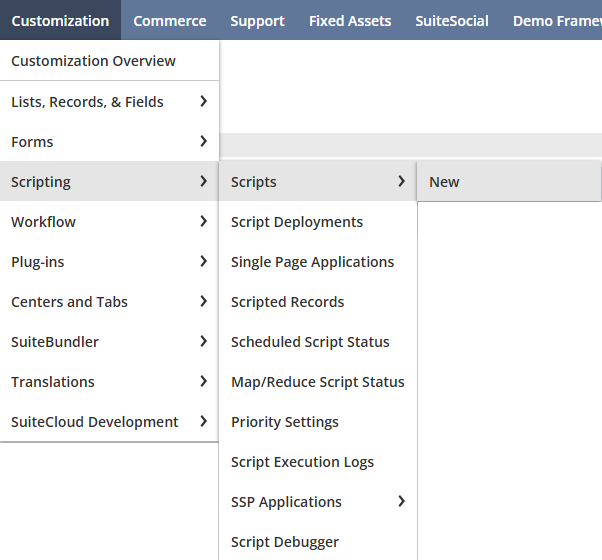
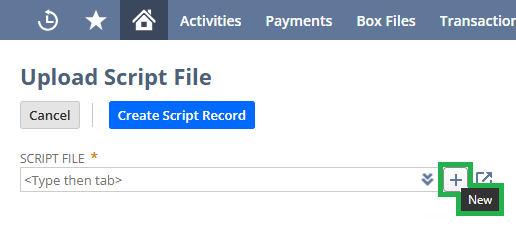
2. If you have not added a Saved Search script before or the script in NetSuite is outdated, download the DataBlend saved-search.js RESTlet from the table in NetSuite Collectors, then hover your mouse over the SCRIPT FILE box to click the ‘+ Add’ button.
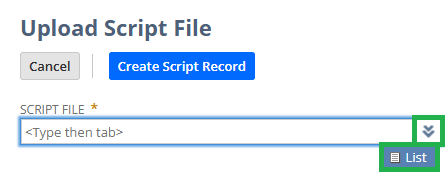
3. If the script is the latest version but a new script record needs to be created, click the double-down arrows to click on List, search for the file, and select it.
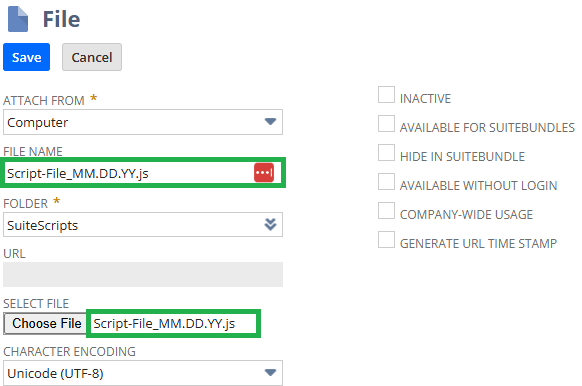
4. Enter a file name with the date for versioning control, select the script file downloaded, and Save the record. Important! File name should have .js at the end of the name.
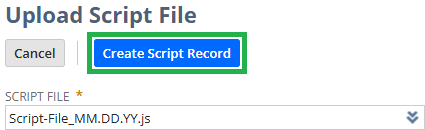
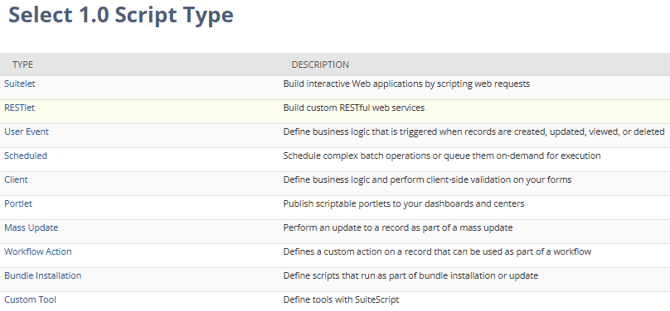
5. Select the created script and click Create Script Record. Then, click on the RESTlet script type.
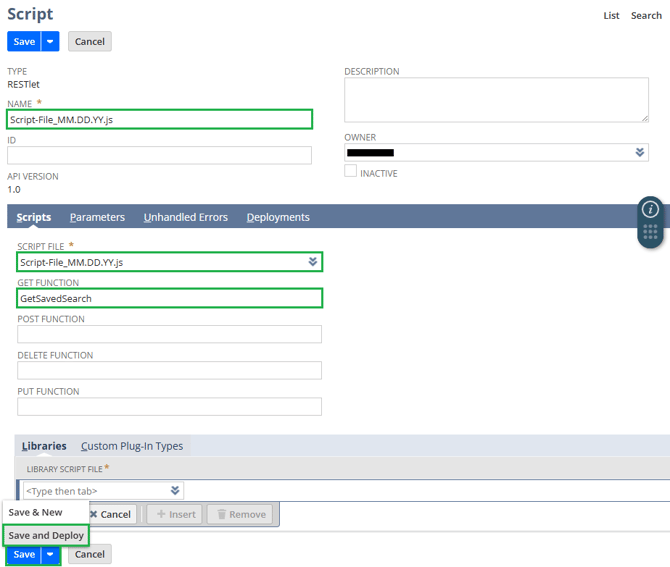
6. Enter a name for the script, note the API version, select the script, type in “GetSavedSearch” in the GET FUNCTION field, click the down arrow next to Save for the Save and Deploy button. Important! File name should have .js at the end of the name.
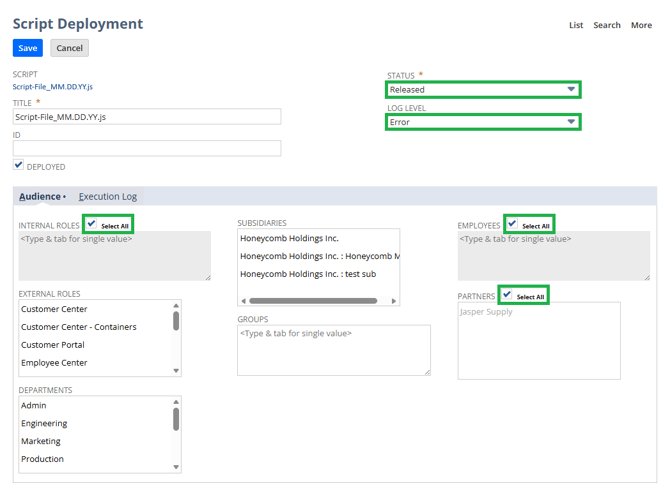
7. Set the deployment Status to Released, ensure Deployed is checked, set the security access as appropriate, and Save to deploy the script.
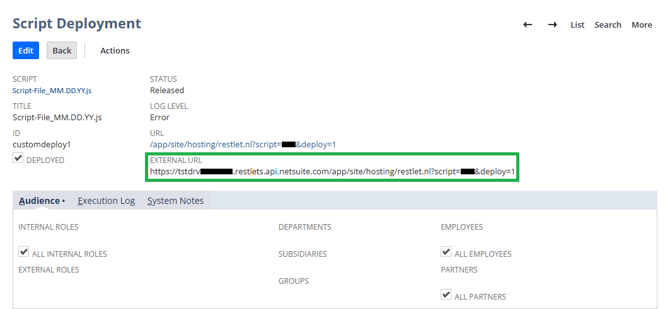
8. Note the EXERNAL URL for the DataBlend Collector configuration. To access the external URL again, navigate to Customization > Scripting > Script Deployments or type “Script Deployment” in the Search bar. Expand the filter and select the script.
Reminder: deactivate outdated scripts.
Create and Find Saved Search in NetSuite
A Saved Search is a request for information. By specifying criteria and results information in NetSuite we are able to search through millions of records in NetSuite to pinpoint exactly what is needed. Saved Search can have many advanced search filters and results display options.
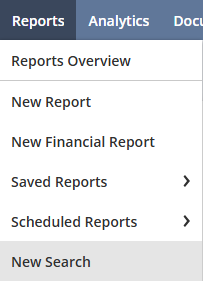
1. To create a Saved Search, navigate to Reports > New Search.
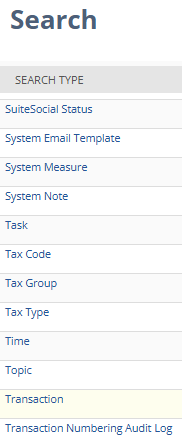
2. Select a record type.
3. Add filters, such as Date or Period. The Date filter will pop-up a form to select a specific date or range.
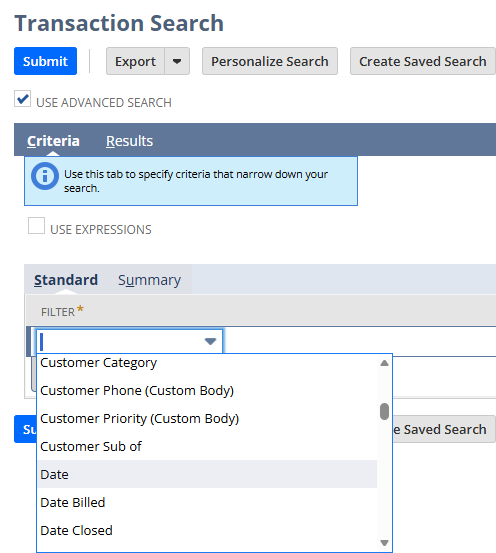
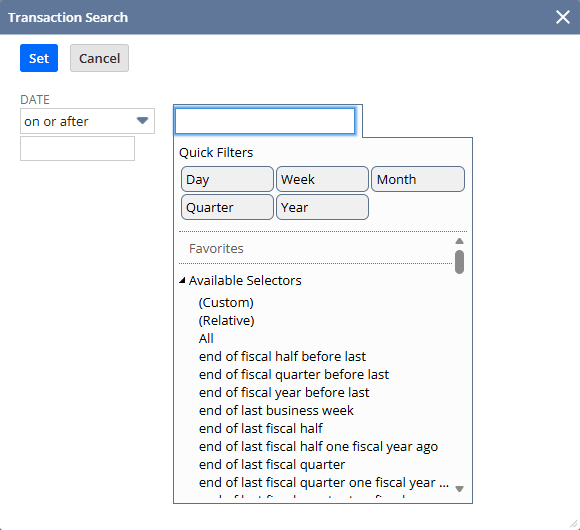
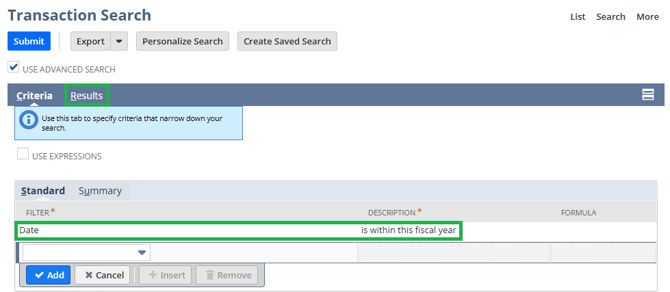
4. Confirm the filter was added and double-check the descriptionciption. Then, click on the Results tab.
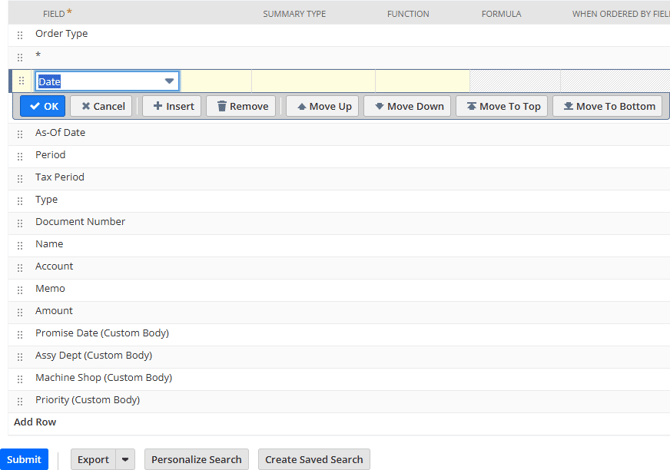
5. Add, remove, and/or organize the order of the fields to your preference by clicking on the field for al list of action options. Then, click Create Saved Search.
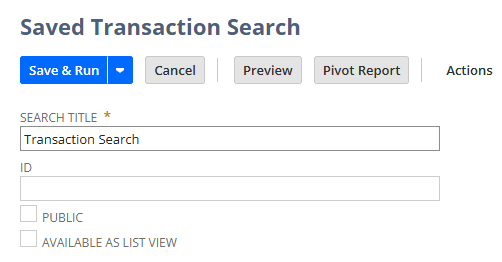
6. Set a SEARCH TITLE and checkmark boxes based on preference. Optionally, click Preview to confirm if filters need to be adjusted by clicking Return to Criteria. Then, click Save & Run.
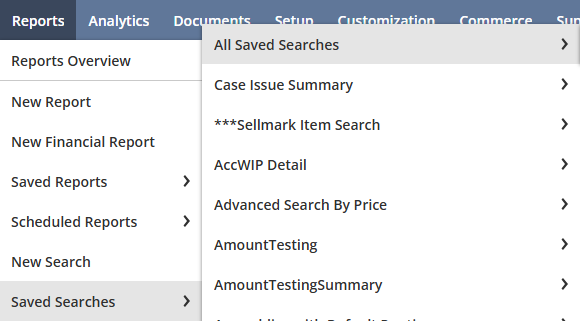
7. Navigate to Reports > Saved Searches > All Saved Searches. Refer to the Title to identify the newly created saved search and note the INTERNAL ID for the DataBlend Collector configuration.
Create DataBlend Saved Search Collector
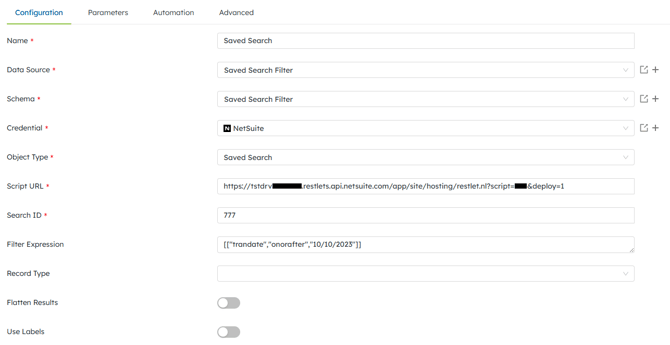
1. In DataBlend, create a Collector with the Saved Search object type.
2. Copy the NetSuite’s INTERNAL ID from the “All Saved Searches” page and paste into DataBlend’s Search ID field.
3. Copy the NetSuite EXTERNAL URL from the according “Script Deployment” page and paste into DataBlend’s Script URL.
4. Optionally, add a filter to limit the number of records being collected. Example: [["line","greaterthan","0"], "and", ["trandate", "onorafter", ""]] - see NetSuite Filter Search Operators for more details.