
Overview
Create Web Query Report in NetSuite
Create DataBlend Web Query Collector
Create Web Query Report in NetSuite
A report in NetSuite is a saved set of data results. NetSuite allows customizing most standard reports using Report Builder. You can modify the appearance and information from reports with numerous features to create the perfect report: add new columns with related information gathered from fields in the system, add simple formulas to calculate values into the reports, set filters to classify the data and sort the data in different ways.
1. Log into NetSuite to create a New Report in the Reports tab.
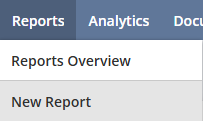
2. Select a report type.
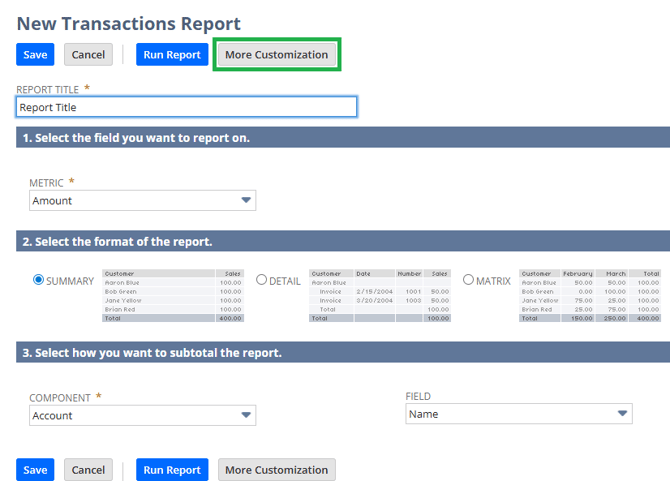
3. Enter a Report Title, select the field, format and subtotal, then click More Customization.
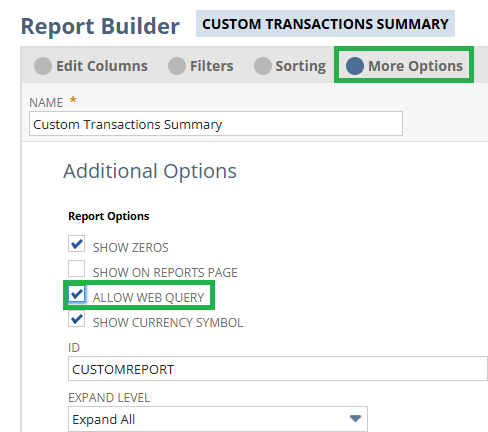
4. Customize your report in Edit Columns, then navigate to More Options to checkmark Allow Web Query and Save.
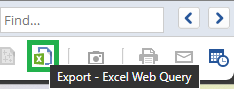
5. 5. At the bottom-right of the page after saving, click on the “Export - Excel Web Query” icon to download the .igy file.
Create DataBlend Web Query Collector
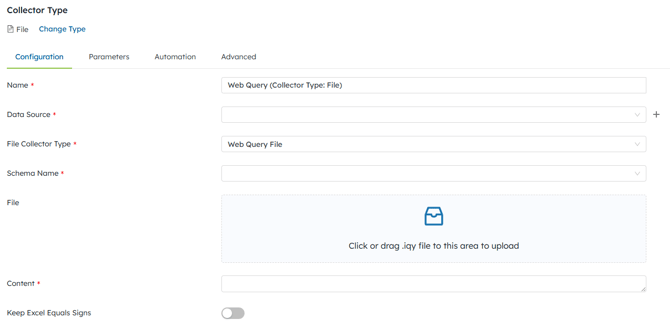
1. In DataBlend, add a new collector with the File type.
2. Name the collector, then click on the ‘+’ (Add) button at the Data Source field to name the Data Source.
3. Click the ‘+’ (Add) button at the Schema Name field to name the Schema.
4. Upload the .iqy file. The Content field will auto-populate and a required Parameters for emailaddress will display. Type in the email address of the NetSuite Admin, then Save and Collect Now.
|
Field |
Required/Optional |
Comment |
|
Type |
Required |
File |
|
Name |
Required |
Free text |
|
Data Source |
Required |
Select existing or add new |
|
File Collector Type |
Required |
Select “Web Query File” |
|
Schema Name |
Required |
Select existing or add new |
|
File |
Required |
Click or drag .igy file downloaded from NetSuite by “Export - Excel Web Query” to the upload box |
|
Content |
Required |
Will be populated once .igy file uploaded. Alternatively, open .igy file in text editor and copy/paste its content into this field. |
|
Parameters email address |
Required |
NetSuite Admin’s email address |
|
Keep Excel Equals Sign |
Optional |
Toggle on or off. |