
Contents
Create RESTlet Script Records in NetSuite
Create DataBlend Bulk Import Data Target
Create RESTlet Script Records in NetSuite
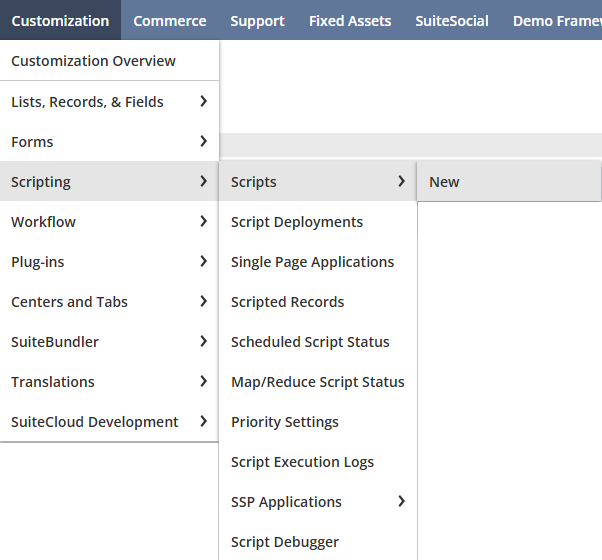
1. Log into NetSuite to create a new script from the Customization menu > Scripting > Scripts > New.
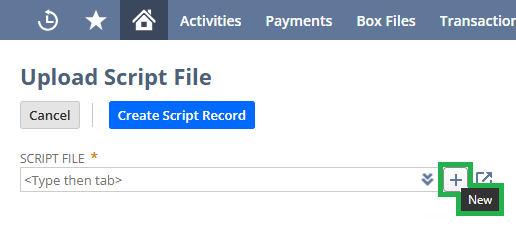
2. If you have not added a Bulk Export script before or the script in NetSuite is outdated, download the according DataBlend script from the table in NetSuite Data Targets, then hover your mouse over the SCRIPT FILE box to click the ‘+ Add’ button.
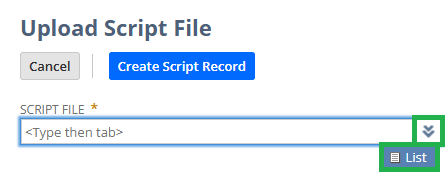
3. If the script is the latest version but a new script record needs to be created, click the double-down arrows to click on List, search for the file, and select it.
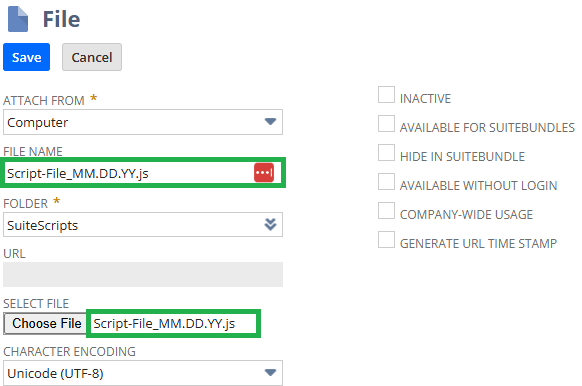
4. Enter a file name with the date for versioning control, select the script file downloaded, and Save the record. Important! File name should have .js at the end of the name.
5. Select the created script and click Create Script Record.
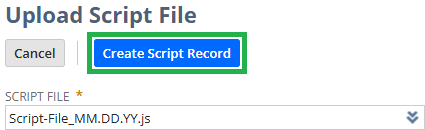
6. Enter a name for the script and note the API version. Click on the down arrow next to Save to click the Save and Deploy button. Important! File name should have .js at the end of the name.

7. Set the deployment STATUS to Released, LOG LEVEL to Error, ensure DEPLOYED is checked, set the security access as appropriate, and Save to deploy the script.
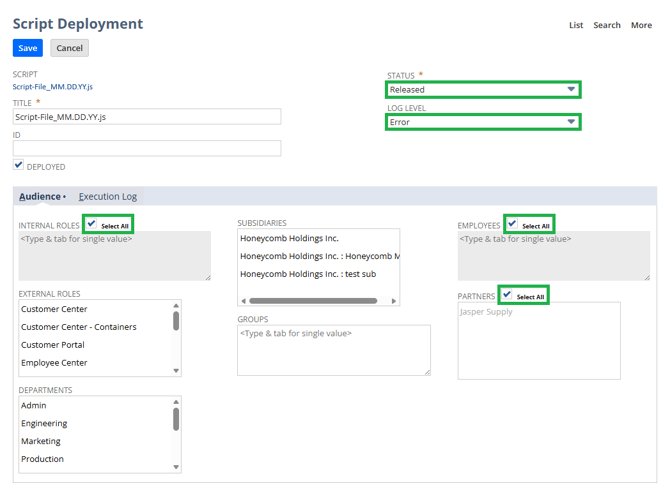
Reminder: deactivate outdated scripts.
Create DataBlend Bulk Import Data Target
1. In DataBlend, create a Data Target with the Bulk Import object type and a selected Record Type. Refer to netsuite.com/help/helpcenter/en_US/srbrowser/Browser2022_2/script/record/account.html for required Query fields (click on the alphabetical buttons, such as C for the Customer fields).
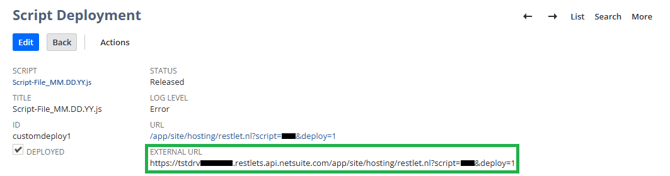
2. In NetSuite, navigate to the bulk-import Script Deployment page and copy the EXTERNAL URL. Paste into DataBlend’s Script URL field.
3. In DataBlend, choose a Batch Size, Save and Run Data Target.

| Batch Size | When to Use |
| 10-25 | Complex records with many line items (e.g., vendor bills, sales orders with lots of lines), or when you are seeing timeout errors even at 50) |
| 50 | A safe default for moderately complex records; a proven working size for things like vendor bills (real-world testing showed 50 vendor bill records processed in ~3 min 20 sec successfully) |
| 100 | Simpler header-only records with few or no line items, or when prior runs at 100 were successful |
| 250-500 | Very simple, lightweight records with minimal fields and no line items, when you are confident NetSuite can process them quickly |