
Overview
This Map Reduce article describes how to set up the NetSuite SuiteScript components required for DataBlend to perform bulk record imports using NetSuite’s Map/Reduce framework. This approach is designed for high-volume data processing and provides asynchronous job execution with status tracking.
Create Script Records in NetSuite
Configuring Script Records and Deployments
Create DataBlend Bulk Import Data Target
How It Works
The integration uses three SuiteScript files that work together to process bulk record imports. The linked DataBlend scripts in the table below are also available in NetSuite Data Targets.
| Order | Script | Type | Purpose |
| 1st | RESTlet | Receives the HTTP request from DataBlend, creates a unique Job ID, and submits the Map/Reduce task to NetSuite’s job queue. | |
| 2nd | Map/Reduce | Processes the actual records in parallel. Handles record creation, updates, sublists, subrecords, and field-type conversions. Caches results upon completion. | |
| 3rd | RESTlet | Receives status check requests from DataBlend. Returns the current state of the Map/Reduce job (PENDING, PROCESSING, COMPLETE, FAILED) along with detailed results from cache. |
Process Flow
The end-to-end flow works as follows:
- DataBlend sends an HTTP POST request containing the records and record type to the Map/Reduce Wrapper RESTlet URL.
- The Wrapper generates a unique Job ID, stores the Task ID in NetSuite’s cache, and submits the Map/Reduce task.
- The Wrapper returns the Task ID and Job ID to DataBlend immediately (the actual processing happens asynchronously).
- The Map/Reduce Script picks up the job from the queue and processes each record in parallel across its Map, Reduce, and Summarize stages.
- DataBlend periodically calls the Status/Results RESTlet URL with the Task ID to check the job status.
- Once complete, the Status script returns the full results including success/error counts and individual record details.
Because the Map/Reduce job runs asynchronously in NetSuite’s background processing queue, DataBlend does not keep the HTTP connection open while records are being processed. This prevents timeouts on large data sets.
Prerequisites
Before beginning the setup, ensure the following requirements are met:
| Requirement | Details |
| NetSuite Access | Administrator role or a role with permissions to: create/upload Script Files, create Script Records, create Script Deployments, and manage SuiteScript configurations. |
| SuiteScript Enabled | SuiteScript 2.x must be enabled in your NetSuite account. Navigate to Setup > Company > Enable Features > SuiteCloud tab and confirm that "Client SuiteScript" and "Server SuiteScript" are both enabled. |
| Script Files | DataBlend will provide three JavaScript files: map-reduce-wrapper.js, map-reduce.js, and StatusResults.js. These should be saved locally on your machine before starting. |
| Integration Role | A NetSuite role that has API access and the appropriate record-level permissions for the types of records you will be importing (e.g., Customer, Vendor, Sales Order, etc.). |
| Token-Based Auth | If your NetSuite account uses Token-Based Authentication (TBA), ensure you have valid integration credentials (Consumer Key/Secret, Token ID/Secret) configured for the integration role. |
Create Script Records in NetSuite
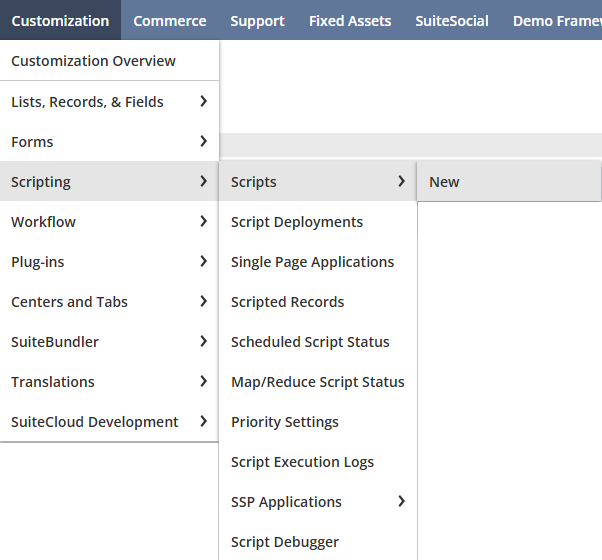
1. Log into NetSuite to create a new script from the Customization menu > Scripting > Scripts > New.
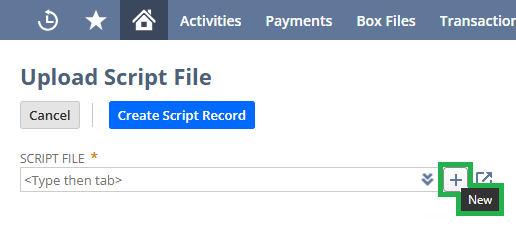
2. Hover your mouse over the SCRIPT FILE box to click the ‘+ Add’ button.
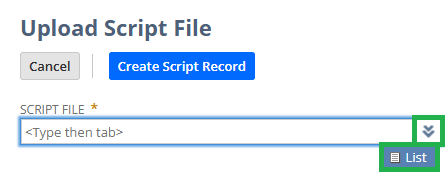
3. If the script is the latest version but a new script record needs to be created, click the double-down arrows to click on List, search for the file, and select it.
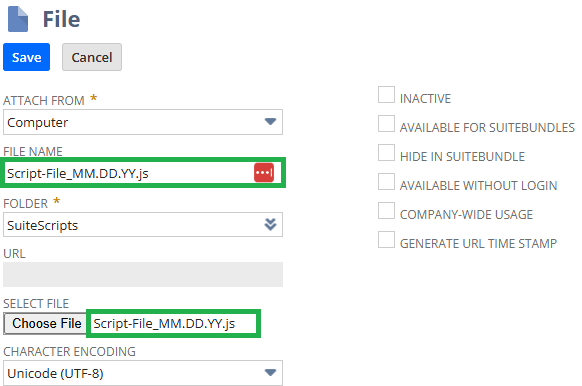
4. Enter a file name with the date for versioning control, select the script file downloaded and Save the record. Select a folder, such as "SuiteScripts". Important! File name should have .js at the end of the name.
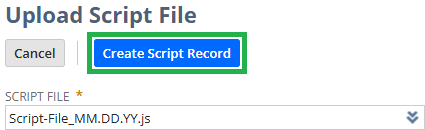
5. Select the created script and click Create Script Record.
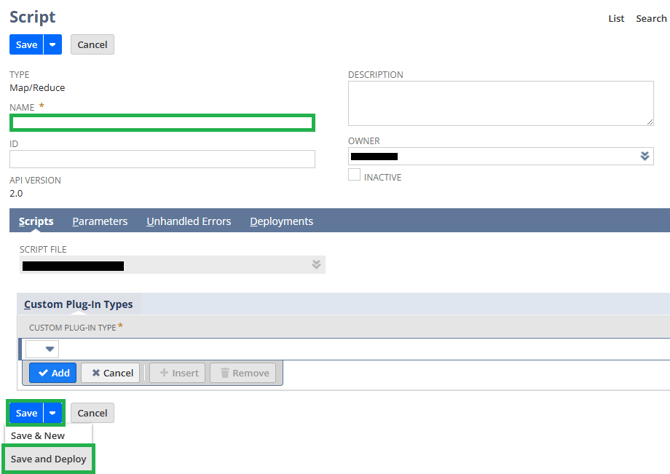
6. Enter a name for the script and note the API version. Click on the down arrow next to Save to click the Save and Deploy button. Important! File name should have .js at the end of the name.
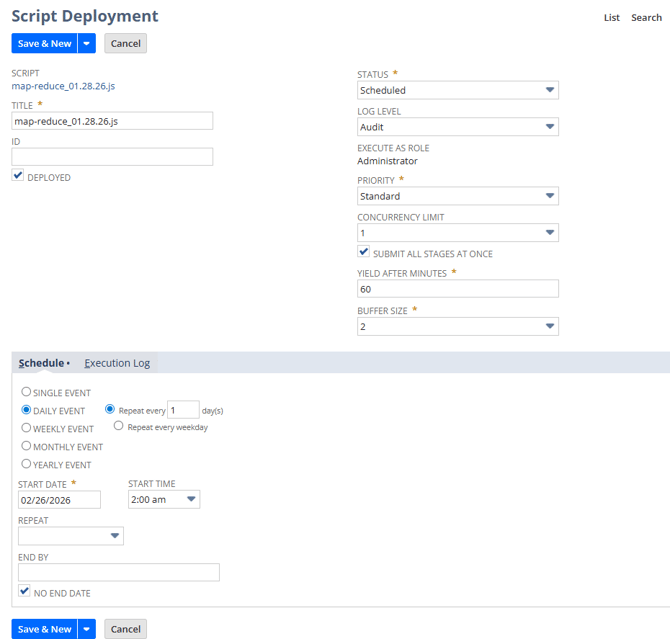
7. Note that the Script Deployment page for Map Reduce is different from the Script Deployment page for Map Reduce Wrapper and Status Results.
a. Map Reduce: set fields, then click the down arrow next to Save & New to click on Save.
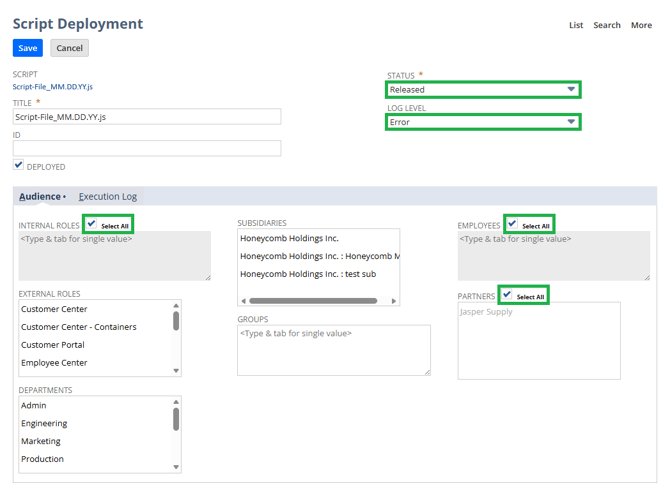
b. Map Reduce Wrapper and Status Results: Set the deployment STATUS to Released, LOG LEVEL to Error, ensure DEPLOYED is checked, set the security access as appropriate, and Save to deploy the script.
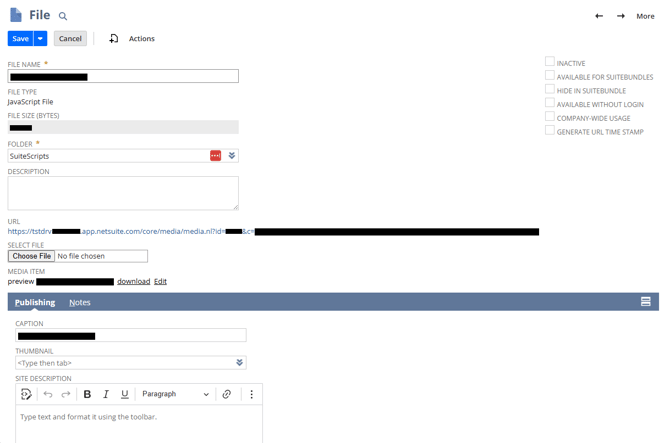
8. Repeat the steps by navigating back to Customization > Scripting > Scripts > New to create the Map Reduce and Status Results scripts.
Reminder: deactivate outdated scripts.
Configuring Script Records and Deployments
After uploading each script file and creating its Script Record, you need to configure the record and create a Deployment. The deployment is what generates the URL that DataBlend will use.
Map/Reduce Wrapper (RESTlet) is the first script DataBlend calls. It accepts the incoming data and submits the Map/Reduce job.
Script Record Configuration:
| Field | Value |
| Name | DataBlend Map/Reduce Wrapper (or a name of your choosing) |
| ID | Auto-generated by NetSuite (e.g., customscript_db_mr_wrapper). Note this value, it will be referenced inside the wrapper script when it triggers the Map/Reduce job. |
| Script Type | RESTlet (auto-detected from the script file) |
| Script File | map-reduce-wrapper.js (already selected from upload) |
| POST Function | post |
| Status | Testing or Released |
Deployment Configuration
After saving the Script Record, navigate to the Deployments subtab and create a new deployment:
| Field | Value |
| Title | DataBlend MR Wrapper Deployment (or a name of your choosing) |
| ID | Auto-generated (e.g., customdeploy_db_mr_wrapper) |
| Status | Released (must be set to "Released" for the script to be accessible via its URL and for DataBlend to reach it. "Testing" restricts access to the script owner only.) |
| Audience > Roles | Select the integration role that will be used for authentication |
| URL (External) | Auto-generated after saving. This is the Script URL you will enter in DataBlend. |
Map/Reduce Script is the processing engine. It does not have an external URL, the external URL is triggered internally by the Wrapper script.
Script Record Configuration:
| Field | Value |
| Name | DataBlend Map/Reduce Processor (or a name of your choosing) |
| ID | Auto-generated (e.g., customscript_db_mr_processor). You will need this value. |
| Script Type | Map/Reduce (auto-detected from the script file) |
| Script File | map-reduce.js (already selected from upload) |
Script Parameters
The Map/Reduce script uses three custom free-form text parameters to receive data. You must create these on the Parameters subtab of the Script Record. The Parameter IDs (e.g., custscript1, custscript2) will be auto-generated by NetSuite.
| Label | Purpose | Description |
| Record Type | Record Type | The NetSuite record type ID (e.g., "customer", "salesorder", "vendor"). |
| Input Data | Record Data | JSON-stringified array of record objects to process. |
| Job ID | Job Tracking | Unique identifier used to cache and retrieve results. |
Critical - Linking the Scripts
After creating the Map/Reduce Script Record and noting its Script ID and Deployment ID, you must update the map-reduce-wrapper.js script to reference the IDs. Open the Wrapper’s Script Record, edit the file, and update the mapReduceTask.Id and mapReduceTask.deploymentId values, as well as the parameter IDs (customscript607 and customdeploy1) to match the auto-generated IDs from the Map/Reduce script’s parameters.
- mapReduceTask.scriptId: navigate to
Customization > Scripting > Scripts and filter TYPE by Map/Reduce, find the latest Map Reduce script, then refer to the ID column.
-
mapReduceTask.deploymentId: navigate to Customization > Scripting > Script Deployments, search for the specific Map Reduce script, then refer to the ID column.
Then, re-upload the updated scripts to NetSuite's File Cabinet (or edit them in-place via the Script Record's file link). Verify that each Script Record still references the correct file, then ensure all deployments are set to "Released" status.
Deployment Configuration:
| Field | Value |
| Title | DataBlend MR Processor Deployment |
| ID | Auto-generated. Note this value — it is referenced in the Wrapper. |
| Status | Released |
| Audience > Roles | Select the integration role |
Status/Results Script (RESTlet) is called by DataBlend to poll the status of a running Map/Reduce job and retrieve results once complete.
Script Record Configuration
| Field | Value |
| Name | DataBlend Status Check (or a name of your choosing) |
| ID | Auto-generated (e.g., customscript_db_status) |
| Script Type | RESTlet (auto-detected from the script file) |
| Script File | StatusResults.js (already selected from upload) |
| POST Function | post |
| Status | Testing or Released |
Deployment Configuration:
| Field | Value |
| Title | DataBlend Status Deployment |
| ID | Auto-generated |
| Status | Released |
| Audience > Roles | Select the integration role |
| URL (External) | Auto-generated after saving. This is the Status URL you will enter in DataBlend. |
Create DataBlend Bulk Import Data Target
1. In DataBlend, create a Data Target with the Bulk Import object type and a selected Record Type. Refer to netsuite.com/help/helpcenter/en_US/srbrowser/Browser2022_2/script/record/account.html for required Query fields (click on the alphabetical buttons, such as C for the Customer fields).
2. In NetSuite, navigate to the map-reduce-wrapper Script Deployment page and copy the EXTERNAL URL. Paste into DataBlend's Script URL field.
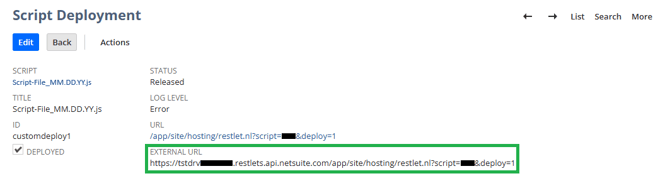
4. In NetSuite, navigate to the status-results Script Deployment page and copy the EXTERNAL URL. Paste into DataBlend's Status URL field.
5. In DataBlend, choose a Batch Size, Save and Run Data Target.
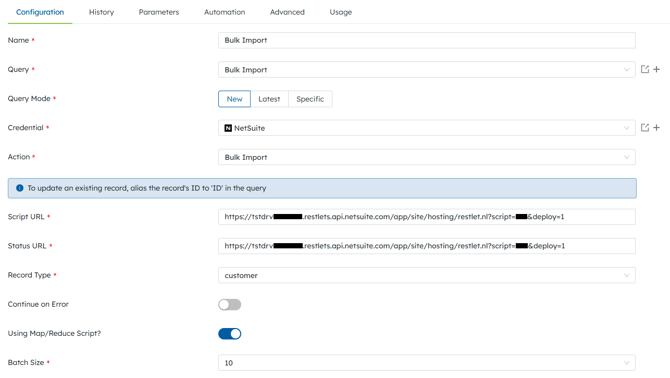
| Field | Description |
| Script URL | The External URL of the Map/Reduce Wrapper RESTlet deployment. This is the URL DataBlend calls to submit records. Find this on the Wrapper’s Deployment page under the URL field. |
| Status URL | The External URL of the Status/Results RESTlet deployment. DataBlend calls this URL periodically to check the progress and retrieve results of the Map/Reduce job. |
| Record Type | The NetSuite record type to create or update (e.g., "customer", "salesorder", "vendor", "inventoryitem"). This must match a valid NetSuite record type ID. |
| Continue on Error | When enabled, the import will continue processing remaining records even if individual records encounter errors. When disabled, processing stops at the first error. Recommended: Enabled. |
| Using Map/Reduce Script? | This toggle must be enabled for this workflow. It tells DataBlend to use the asynchronous Map/Reduce flow (submit job, then poll for status) rather than a synchronous import. |
Reminder
To update an existing record rather than creating a new one, alias the record’s internal ID to ‘ID’ in your query. DataBlend will include this in the payload so the Map/Reduce script can load and update the existing record instead of creating a new one.
| Batch Size | When to Use |
| 10-25 | Complex records with many line items (e.g., vendor bills, sales orders with lots of lines), or when you are seeing timeout errors even at 50 |
| 50 | A safe default for moderately complex records; a proven working size for things like vendor bills (real-world testing showed 50 vendor bill records processed in ~3 min 20 sec successfully) |
| 100 | Simpler header-only records with few or no line items, or when prior runs at 100 were successful |
| 250-500 | Very simple, lightweight records with minimal fields and no line items, when you are confident NetSuite can process them quickly |
Testing and Verification
| # | Check | Expected Result |
| 1 | All three Script Records exist and reference the correct files | Visible on Scripts list page |
| 2 | All three Deployments are set to "Released" | Status = Released |
| 3 | Wrapper script’s scriptId and deploymentId match the Map/Reduce Script Record | IDs match exactly |
| 4 | Parameter IDs are consistent across Wrapper and Map/Reduce scripts | All 3 parameter IDs match |
| 5 | Audience/Roles on all deployments include the integration role | Role is listed |
| 6 | DataBlend Script URL returns a valid response (not 403/404) | HTTP 200 or valid error JSON |
| 7 | DataBlend Status URL returns a valid response | HTTP 200 or valid error JSON |
| 8 | Small test import (1–5 records) completes successfully | Records created/updated in NS |
You can monitor Map/Reduce job execution in NetSuite by navigating to Customization > Scripting > Script Status (or Map/Reduce Script Status). This page shows all queued, running, and completed Map/Reduce jobs with details on stage progress and any errors encountered.
Troubleshooting
| Issue | Resolution |
| 403 Forbidden when calling Script URL | The integration role is not listed in the Deployment’s Audience. Edit the deployment and add the correct role. |
| 404 Not Found | The deployment Status is not set to "Released", or the URL was copied incorrectly. Verify the deployment status and re-copy the External URL. |
| Map/Reduce job shows FAILED | Check the Script Execution Log in NetSuite (Customization > Scripting > Script Execution Logs) for error details. Common causes: mismatched parameter IDs, invalid record type, or permission issues on the target record type. |
| Map/Reduce job shows FAILED | Results are stored in NetSuite’s cache with a 1-hour TTL. If the status check happens more than an hour after the job completes, the results may have expired. |
| Records not created/updated | Verify the Record Type is correct and matches a valid NetSuite record type ID. Check that field IDs in the import data match the NetSuite field IDs for that record type. |
| Parameters are null in the Map/Reduce script | The parameter IDs in the Wrapper (custscript7, custscript6, custscript10) do not match the parameter IDs on the Map/Reduce Script Record. Verify all three IDs match. |
| Date fields are not saving correctly | Date values must be in a format that NetSuite’s N/format module can parse. The most reliable format is MM/DD/YYYY. Confirm date formatting in your source data. |
| SSS_USAGE_LIMIT_EXCEEDED | The Map/Reduce script has exceeded its governance limit. This typically happens with very large batch sizes. Reduce the number of records per batch. |
Appendix
Job Status Values
The Status/Results script returns one of the following status values:
| Status | Meaning |
| PENDING | The job has been submitted but has not yet started processing. |
| SCHEDULED | The job is scheduled and waiting for an available processing slot. |
| PROCESSING | The job is actively processing records. |
| COMPLETE | The job finished. Check the results object for success/error counts. |
| COMPLETE_WITH_ERRORS | The job finished but some records encountered errors. The results object includes both successes and the specific errors per record. |
| FAILED | The job failed entirely. Check NetSuite’s Script Execution Logs for details. |
Cache Behavior
The scripts use NetSuite’s N/cache module with PROTECTED scope to share data between the Wrapper, the Map/Reduce job, and the Status check. Key points:
-
Cache TTL is set to 3,600 seconds (1 hour). Results must be polled within this window.
-
Cache scope is PROTECTED, meaning it is shared across all scripts in the same bundle/account but isolated from other accounts.
-
After the summarize stage caches the final results, it cleans up the intermediate Job ID/Task ID mappings.
Script Files Reference
| File Name | Script Type | NetSuite Script Type Tag |
| map-reduce-wrapper.js | RESTlet | @NScriptType Restlet |
| map-reduce.js | Map/Reduce | @NScriptType MapReduceScript |
| StatusResults.js | RESTlet | @NScriptType Restlet |