
Parameters
Parameters allow you to define a variable value once and reuse it across a collector, query, data target, task, or workflow. Rather than hardcoding or manually updating a date range or filter value before every run, you can set parameters and DataBlend will automatically inject the resolved value at runtime.
Example use cases:
- Pulling data for a rolling date window (e.g. last month, current quarter) without editing the collector each time.
- Sharing a single date range across multiple collectors and data targets in the same workflow.
- Storing an API key or sensitive value in encrypted form so it cannot be read by non-admins.
-
Replacing a static filter value with the result of another query.
To add a parameter, navigate to the Parameters tab of any collector, query, data target, task, or workflow and click + Add Parameter.
Give the parameter a descriptive name and select one of the following Type:
| Type | Purpose |
| Boolean | True, False, or NULL. Use for toggling flags or yes/no filter values. |
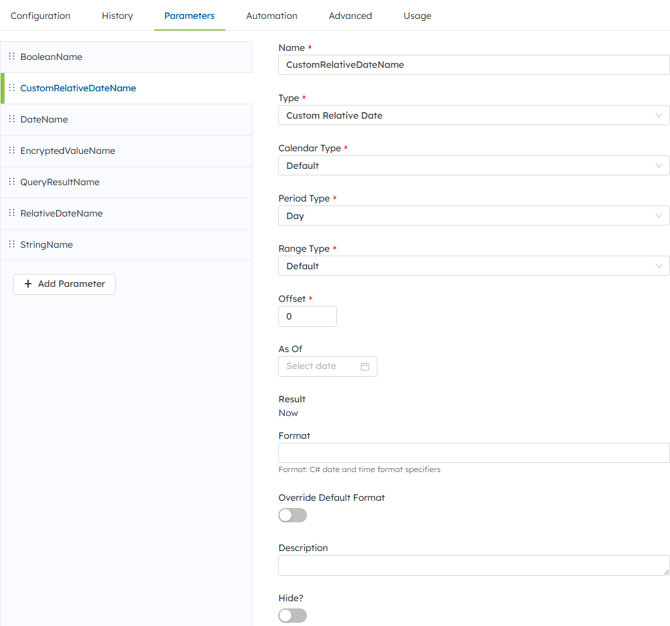
| Custom Relative Date | A configurable offset from a base date with formatting control. Use for advanced scenarios like "30 days ago" or when the API expects a specific date format such as a Unix timestamp. |
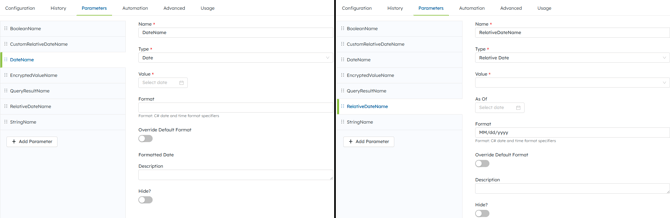
| Date | A fixed calendar date. Use when the date does not change between runs. |
| Encrypted Value | Stores the value encrypted at rest. Non-admins cannot view it. Use for API keys or tokens passed to HTTP data targets. |
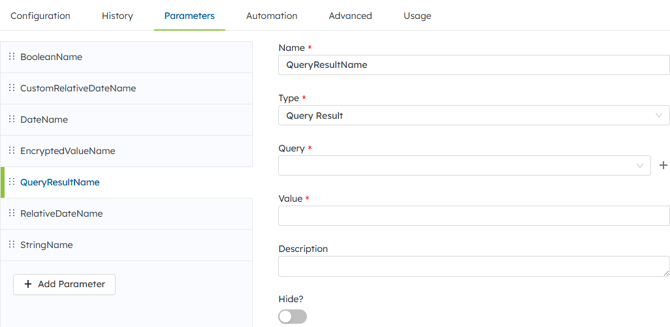
| Query Result | Pulls a value from the first result of another query. Use when a downstream step depends on data returned upstream. |
| Relative Date | A rolling date relative to when the job runs (e.g. Start of Last Month, End of Last Quarter). Use for recurring jobs where the date window should shift automatically. |
| String | Free-form text, numbers, characters, or symbols. Use for account IDs, status values, or any non-date filter. |
Based on the selected Type, required and optional fields will display.
Boolean, Encrypted Value and String have the same fields, but different requirements:

| Field | Description |
| Calendar Type | “Default” calendar type lets users define an offset of a period from a certain point in time and additionally the start or end of that period and how the result is formatted. The “Fiscal” calendar limits the period type to only Quarters and Years and the year’s start date is based of the group settings. |
| Period Type | Options are: Hour, Day, Week, Month, Quarter and Year. |
| Range Type | Options are: Default, Start Of, and End Of. Default does not change the base date and will not truncate any values. This is useful if the parameter should be exactly one week ago instead of the beginning of last week. |
| Offset | Determines how many periods should be added or subtracted from the base date. |
| As Of | Allows the user to change the base date, otherwise the time (UTC) the job is run is used. |
| Format | Useful in scripts to format the date according to dotnet standards. |
In the Configuration tab, click on "Add Parameter" to the right of fields that parameters can be applied to. Type in the parameter name between double brackets. Example: 